
From box to first light seconds.
Plug in, and pair your Luna. Follow the steps in order, or jump to the part you need. Everything below works on iOS and Android.
Luna Setup
05 steps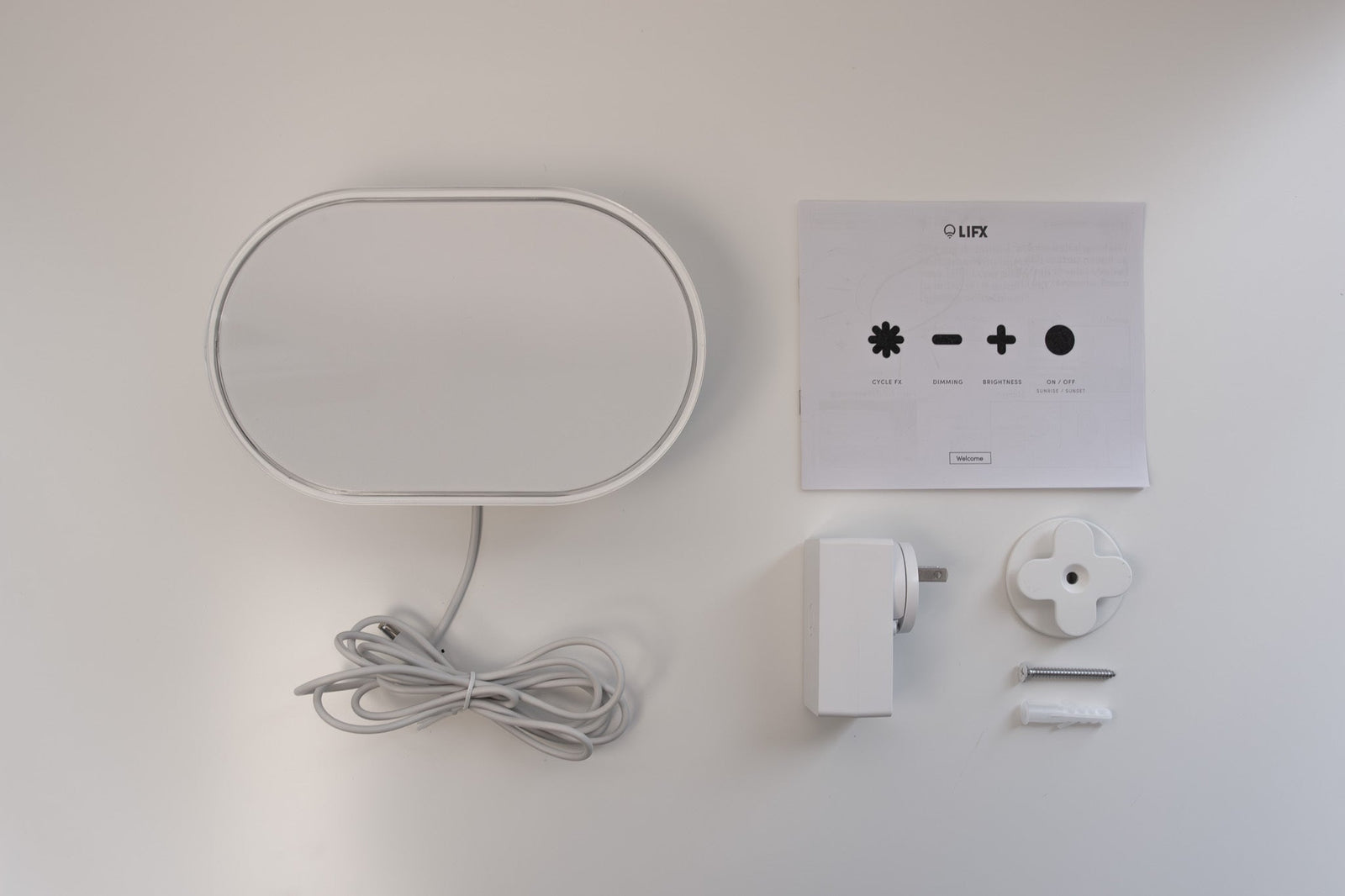
Everything you need for your Luna is included in the box — no hub required.
In the box:
- LIFX Luna Lamp
- Power adapter
- Wall hook + mounting hardware (if wall mounting)
- Quick start card with QR / Matter code
You’ll Need:
- A smartphone (iOS 14.0+ or Android 8.0+)
- The LIFX app (download from App Store or Google Play)
- A 2.4 GHz Wi-Fi network (Most smart devices require 2.4 GHz. If your router combines 2.4 GHz and 5 GHz, that’s usually fine.)
- Your Wi-Fi password
Important Notes:
- Keep your phone near the Luna during setup.
- Make sure Bluetooth is enabled.
- Ensure your phone is connected to the same Wi-Fi network you want the Luna to use.
Simple Setup
- Plug the power adapter into the lamp.
- Plug into a wall outlet
- Turn the lamp on.
The lamp should illuminate, indicating it’s ready for setup.
If it does not turn on, check the outlet and power connection.
Select your device below to get step-by-step setup instructions tailored to your phone. We recommend using the Matter QR code method for the quickest and most reliable connection — you'll find the QR code in your product manual or printed on the back of your smart mirror.
Choose your OS
On iOS, you can set up in two ways
We recommend Matter for the most reliable setup. Use Wi-Fi if you've lost the QR code or can't access it.
iOS Onboarding via Matter QR code
- Plug in the light and power it on.
- Open the LIFX app and tap the + icon in the bottom right.
- Tap New Product, then New Light.
- Tap Scan QR Code and use the camera to scan. Alternatively, type the 11-digit Matter code from the product (or Manual).
- Tap Add to LIFX and Choose Home from the list.
- Wait for the Home app to connect to the light.
- Select a Location (e.g. Bedroom) and give it a Name (e.g. Bedside Lamp).
- You're all set.
iOS Onboarding via WiFi
- Plug in the light and power it on.
- Open the LIFX app and tap the + icon in the bottom right.
- Tap New Product, then New Light.
- Tap Set Up Device Manually.
- Go to your phone's Wi-Fi Settings:Matter: From Other Networks, select the LIFX Light.HomeKit: LIFX appears under Set Up New Device; after 15 minutes it moves to Other Networks. Select the LIFX Light from there.
- Return to the LIFX app.
- Select your Wi-Fi and enter the password.
- Wait for the light to connect via Wi-Fi (up to a minute).
- Finish setup by selecting a Group and giving it a Name.
- Opt in or out of any Suggested Routines.
- You're all set.
On Android, you can set up in two ways
We recommend Matter for the most reliable setup. Use Wi-Fi if you've lost the QR code or can't access it.
Android onboarding via Matter QR code
- Plug in the light and power it on.
- Open the LIFX app and tap the + icon in the bottom right.
- Tap New Product, then New Light.
- Tap Scan QR Code and use the camera to scan. Alternatively, type the 11-digit Matter code from the product (or Manual).
- Tap Add to LIFX and Choose Home from the list.
- Wait for the Home app to connect to the light.
- Select a Location (e.g. Bedroom) and give it a Name (e.g. Bedside Lamp).
- You're all set.
Android onboarding via Wi-Fi
- Plug in the light and power it on.
- Open the LIFX app and tap the + icon in the bottom right.
- Tap New Product, then New Light.
- Tap Set Up Device Manually.
- Select your new LIFX light when it appears.
- Select your Wi-Fi and enter the password.
- Wait for the light to connect via Wi-Fi (up to a minute).
- Finish setup by selecting a Group and giving it a Name.
- Opt in or out of any Suggested Routines.
- You're all set.
Accessing Button Setup
- From the Luna Control Screen, tap ⋯ then select Light Settings
- Tap Buttons Setup — you'll see all 4 Luna buttons listed
Factory defaults
- Power Button — Single Press: On/Off
- Plus Brightness — Single Press: Increase brightness
- Minus Brightness — Single Press: Decrease brightness
- FX Button — Single Press: Cycle through FX.
Configuring a button
- Tap the button you want to configure (e.g. FX Button).
- Choose the press type you want to assign: Single Press, Double Press, or Long Press.
- Set the Target — control the Luna itself, or other LIFX products, groups, or locations.
- Set the Action — toggle on/off, change brightness, switch colours, and more. Some actions run locally; others use the LIFX Cloud.
- Tap Save — your button configuration is complete.
Tips
To control other Matter devices (Apple Home, Samsung SmartThings, etc.), set up button actions inside your Matter ecosystem app.
If a button triggers both LIFX and Matter devices, you can disable the LIFX action on that button to prevent duplicate triggers.